The DEMO mode setting is used by retailers to display the functionality and features of the TV. DEMO mode also limits some of the features and functions commonly used in a home.
The steps to disable the DEMO mode will depend on the design of the TV. Select the option that best meets the description of your TV:
Notes:
You can refer to this video tutorial on how to disable Demo mode for your Google TV™ or follow to the steps below.
![]()
Tip: Learn how to turn captions on or off when watching Internet videos from YouTube
Set Demo mode and Picture reset mode to Off.
- Open the
 Settings screen. How to access Settings
- If the remote control has a Quick Settings (
 or
or  ) button, press the Quick Settings button and select Settings.
 - If the remote control does not have a Quick Settings ( or ) button, press the HOME button and select Settings.
- The steps depend on your TV menu options:
- Select System → Retail mode settings → Set Demo mode and Picture reset mode to Off. (Android™ 10 or later)
- Select Device Preferences → Retail mode settings → Set Demo mode and Picture reset mode to Off. (Android 9)
- Select Retail mode settings → Set Demo mode and Picture reset mode to Off. (Android 8.0 or earlier)
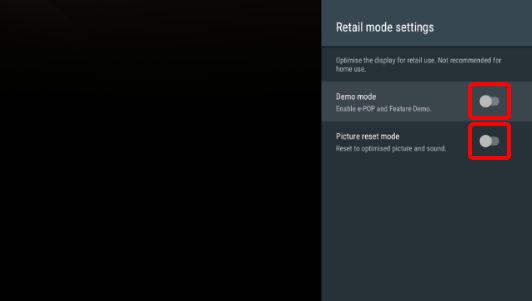
The screen varies depending on your TV model and installed operating system.
Note: For some models, you can also cancel the Demo mode by holding down the TV button on the side of the TV.
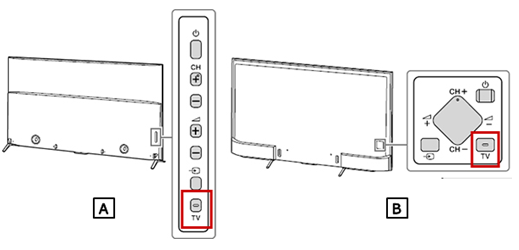
- A: A Rear view of the X9400C series
- B: Rear view of the X8500C series
These models have main menu items at the top of the
Home screen.


You can refer to this video tutorial on how to disable disable shop mode (Demo mode) for your Bravia TV™ (English only) or follow to the steps below.
![]()
Tip: Learn how to turn captions on or off when watching Internet videos from YouTube
IMPORTANT: If model-specific information is required to complete any of the steps in this solution, refer to the manual supplied with the product.
- The TV has a HOME or MENU button on the back or side of the TV.
To turn off the demo mode, press and hold the HOME or MENU button on the TV for more than 10 seconds. The message Demo mode: Off will appear on the screen.
If holding the HOME or MENU button does not work, press and hold the CH/INPUT button for 10 seconds.
- The TV does not have a HOME or MENU button on the TV itself.
To turn off the demo mode, press and hold the CH/INPUT button on the TV for more than 10 seconds. The message Demo mode: Off will appear on the screen.
If holding the CH/INPUT button does not work, try the steps below to disable DEMO mode:
- On the remote control, press the HOME or MENU button.
- Select Settings.
- Select Setup.
- Select Initial Setup and follow the on-screen instructions.
Note: One of the steps during the Initial Setup is to set the viewing environment. Make sure to select HOME when doing this step.
Hint: The DEMO mode setting can also be turned off by resetting the TV to factory default.


























